
Rippling Solutions: How to Integrate Rippling with QuickBooks
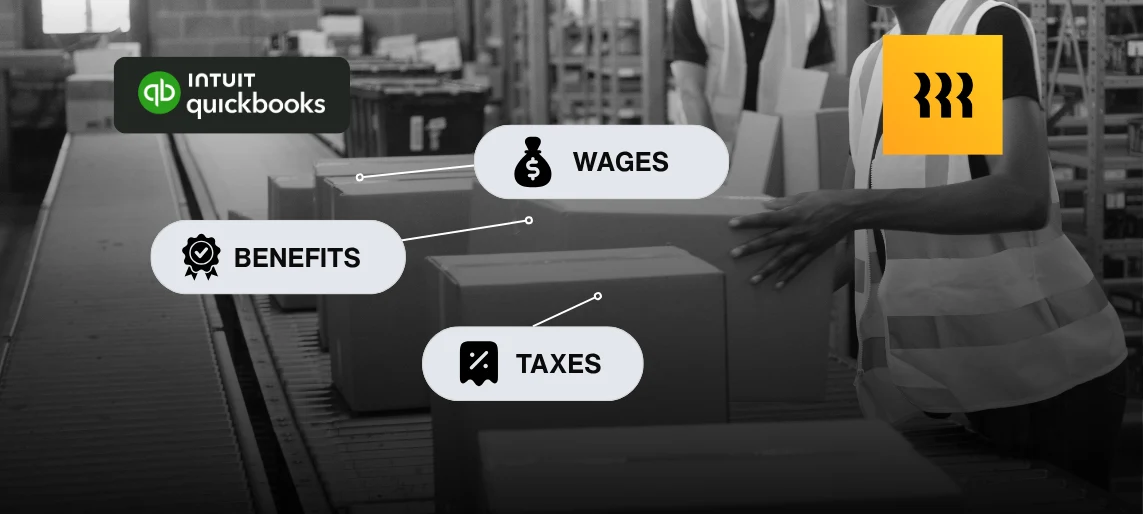
Rippling QuickBooks integration helps payroll and accounting teams reduce manual work, improve accuracy, and support cleaner month-end closes. This guide explains the benefits, common setup pitfalls, and the steps needed to connect both systems successfully.
Why Payroll–Accounting Integration Is Critical
It’s payroll week again. You’ve run payroll in Rippling, but the work doesn’t stop there. Journals need to flow into QuickBooks, GL accounts have to line up, and reconciliation has to hold through the close.
Hours later, you’re still fighting mismatched entries. Employer taxes are sitting in the wrong liability account. Department splits didn’t map. The payroll subledger and the general ledger refuse to balance.
Sounds like a horror movie? Well, if you’ve ever spent a late night reclassifying payroll entries, you know it’s real.
Payroll and accounting teams are under constant pressure to get the numbers right, on time, every time. And when the systems don’t talk to each other, you’re left fixing errors instead of closing the books.
That’s why integration matters. A clean connection between Rippling and QuickBooks saves you from late-night reconciliations, gives your accountant numbers they can trust, and frees your team from endless back-and-forth.
Benefits of Connecting Rippling and QuickBooks
1. Reduced manual entry
Without integration, every payroll run requires manual bookkeeping. Each deduction, contribution, and expense has to be re-entered into QuickBooks. Automating this flow saves significant time and reduces repetitive tasks.
2. Accurate reporting
Payroll is one of the largest expenses for most companies. Errors in recording it can distort P&L statements, cash flow reports, and tax filings. By syncing Rippling directly to QuickBooks, payroll journals are pushed automatically, ensuring your financial statements reflect reality.
3. Compliance support
Integration reduces the risk of missing deadlines for tax filings or misclassifying wages. Both systems stay aligned, so your records are audit-ready and your accountants don’t have to chase corrections at year-end.
Common Integration Pitfalls—and How PARA Resolves Them
While Rippling provides built-in connectors for QuickBooks, many organizations still run into problems:
- Incorrect general ledger (GL) mapping: Payroll expenses may not map to the right chart of accounts. This creates misaligned reports and reconciliation issues.
- Department and location misclassifications: Without careful setup, expenses tied to departments or cost centers in Rippling don’t always translate properly in QuickBooks.
- Timing mismatches: If payroll journals are not pushed in sync with accounting periods, it can disrupt monthly closes.
- Incomplete testing: Many teams skip validation, which means integration errors go unnoticed until quarter- or year-end.
PARA’s approach focuses on avoiding these pitfalls by walking clients through each step carefully: mapping accounts correctly, testing the sync, and validating reports before going live.
Step-by-Step Integration Approach
Step 1: Prepare the systems
Confirm that both Rippling and QuickBooks accounts are active and up to date. Ensure user permissions are correct for payroll and accounting admins.
Step 2: Enable the integration in Rippling
Rippling offers a QuickBooks connector. From the Rippling dashboard, navigate to the App Shop, select QuickBooks, and authorize the connection. This step requires admin credentials in both systems.
Step 3: Map payroll categories to GL accounts
Assign each payroll category (e.g., wages, bonuses, employer taxes, benefits) to the appropriate GL accounts in QuickBooks. Careful mapping ensures reports remain accurate.
Step 4: Configure dimensions
Set up department, location, or class tracking as needed. This allows QuickBooks to reflect payroll by business unit, cost center, or project—crucial for companies with complex reporting.
Step 5: Test with a payroll run
Run a test payroll and check the journal entries pushed into QuickBooks. Validate account allocations, totals, and department splits.
Step 6: Reconcile and go live
After confirming accuracy, push the first live payroll. From then on, Rippling automatically syncs payroll data into QuickBooks after each run, minimizing manual work.
Final Words
Integrating Rippling with QuickBooks turns a manual, error-prone process into a seamless workflow that keeps HR and finance aligned. For HR managers and payroll admins, it means less time spent troubleshooting and more time focusing on strategic work. For accountants, it ensures that payroll data is accurate, timely, and ready for reporting.
By approaching integration methodically—preparing systems, mapping correctly, and testing thoroughly—you can eliminate common pitfalls and ensure your payroll-to-accounting connection supports compliance and accuracy.
FAQs
Does QuickBooks integrate with Rippling?
Yes. Rippling offers a direct integration with QuickBooks, allowing payroll data to flow into your accounting system automatically.
Does Rippling integrate with NetSuite?
Yes. Rippling supports NetSuite integration, which is especially useful for companies that scale beyond QuickBooks and need enterprise-level ERP capabilities.
Why do accountants not like QuickBooks Online?
Some accountants find QuickBooks Online limiting compared to desktop versions, particularly around reporting customization and batch transaction handling.
Does Stripe have a QuickBooks integration?
Yes. Stripe integrates with QuickBooks, allowing businesses to automatically sync payment data for easier reconciliation.
Sources
Intuit. (2025). QuickBooks Online integrations: Payroll and HR apps. Intuit. https://quickbooks.intuit.com/app/apps/home/
Rippling. (2025). Rippling integrations overview. Rippling. https://www.rippling.com/integrations
U.S. Small Business Administration. (2023). Record keeping for small business. https://www.sba.gov/business-guide/manage-your-business/keep-records